
Getting Started
Use this flow when you are trying changAIs for the first time.
<video src=“/video/changais-v0.mp4” poster=“/video/changais-v0-poster.webp” controls preload=“none” playsinline style=“width: 100%; border-radius: 8px;”
Your browser does not support the video tag.
1. Install the Extension
Section titled “1. Install the Extension”Install changAIs from the extension marketplace for your editor:
- VS Code: Visual Studio Marketplace.
- VSCodium and compatible editors: Open VSX Registry.
If you are installing from a downloaded package, install the .vsix file:
- Open VS Code.
- Open the Command Palette with
Ctrl+Shift+Pon Windows or Linux, orCmd+Shift+Pon macOS. - Run
Extensions: Install from VSIX.... - Select the downloaded
.vsixfile. - Reload VS Code if prompted.
See Install for marketplace and manual installation details.
2. Open a Project
Section titled “2. Open a Project”Open the folder that contains the code you want to review. changAIs works best when the project already has changed files from an AI coding session.
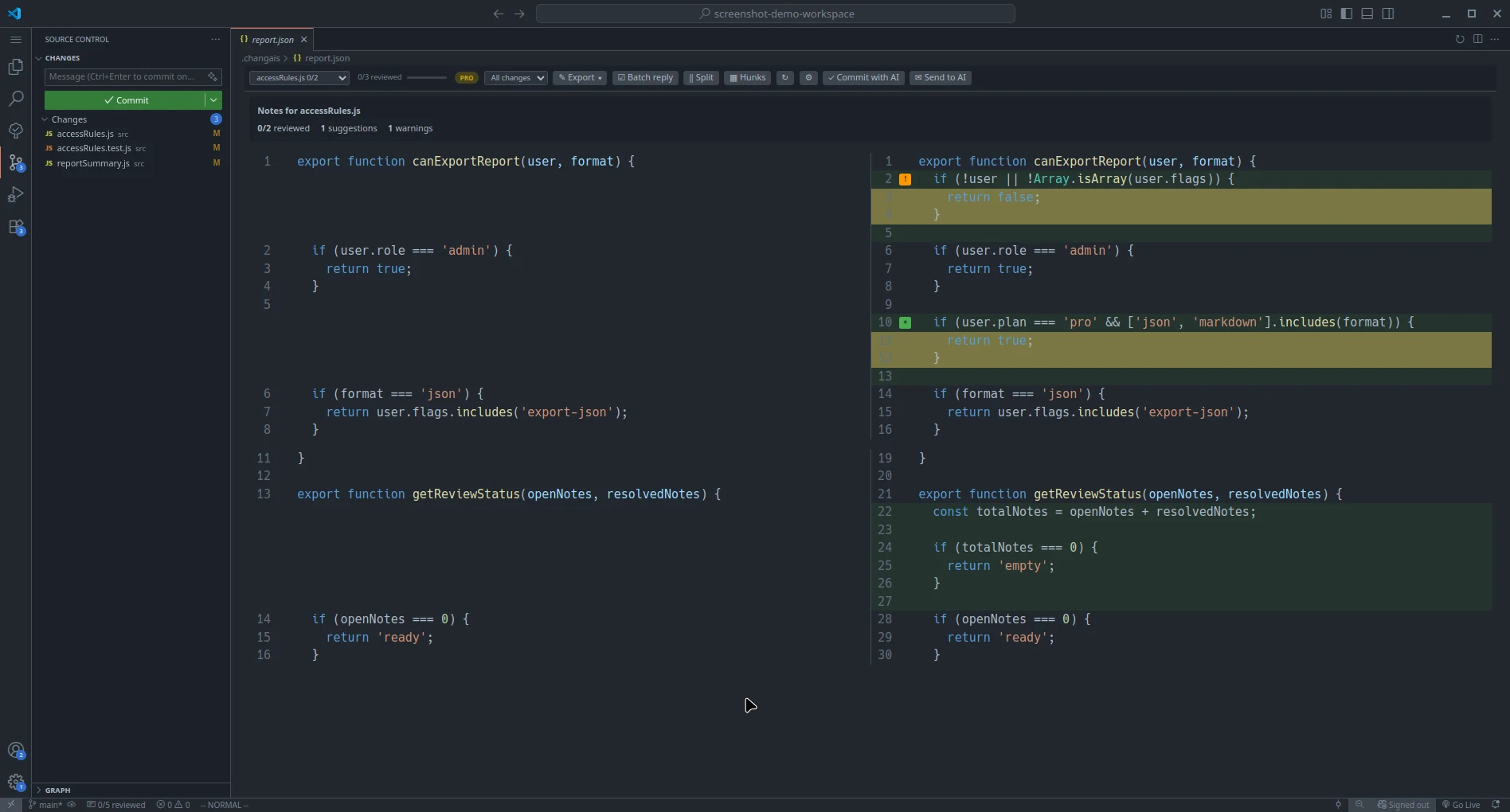
3. Confirm changAIs Is Available
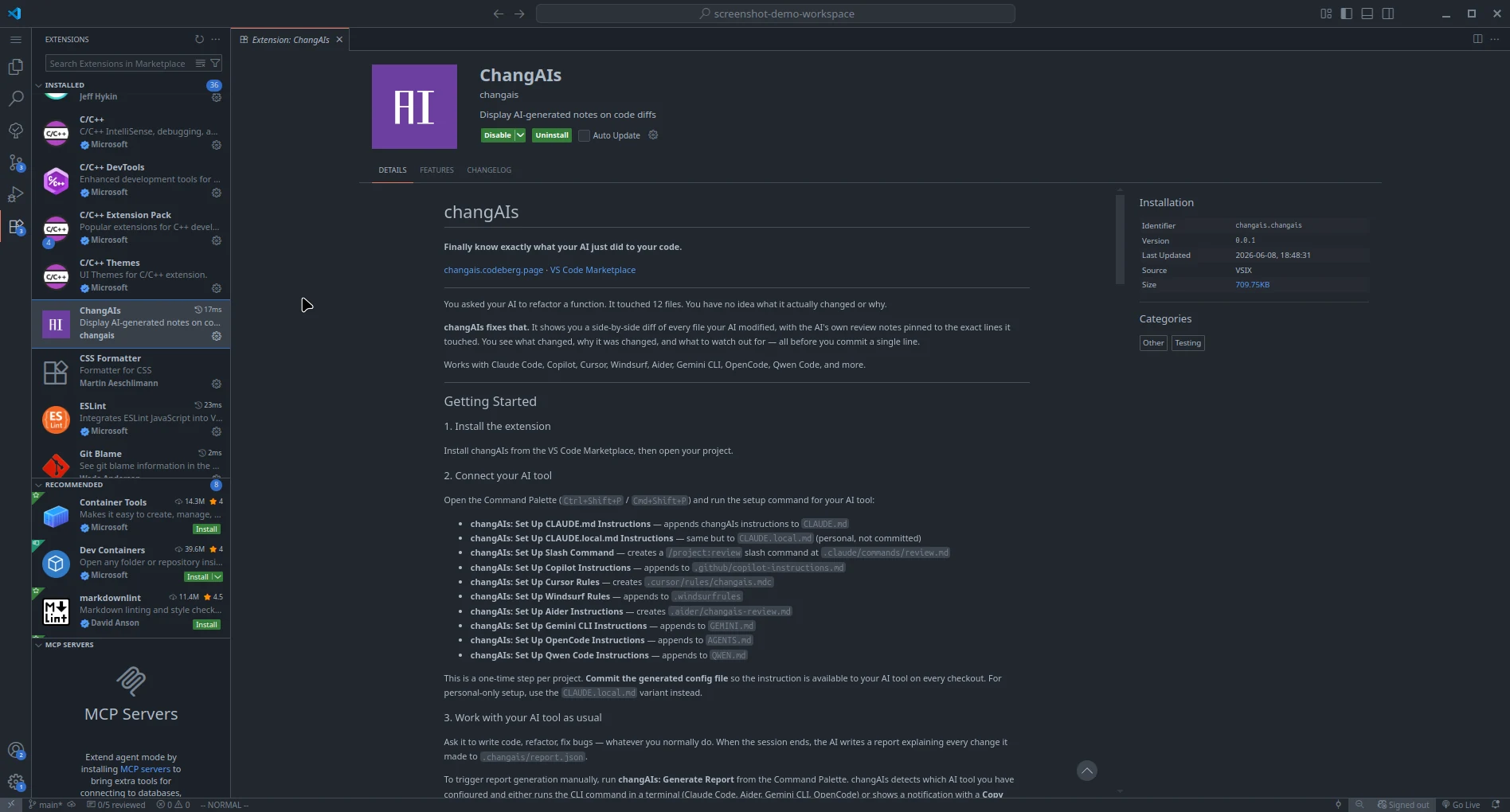
Section titled “3. Confirm changAIs Is Available”Open the Extensions view and confirm that changAIs is installed and enabled for the current workspace.
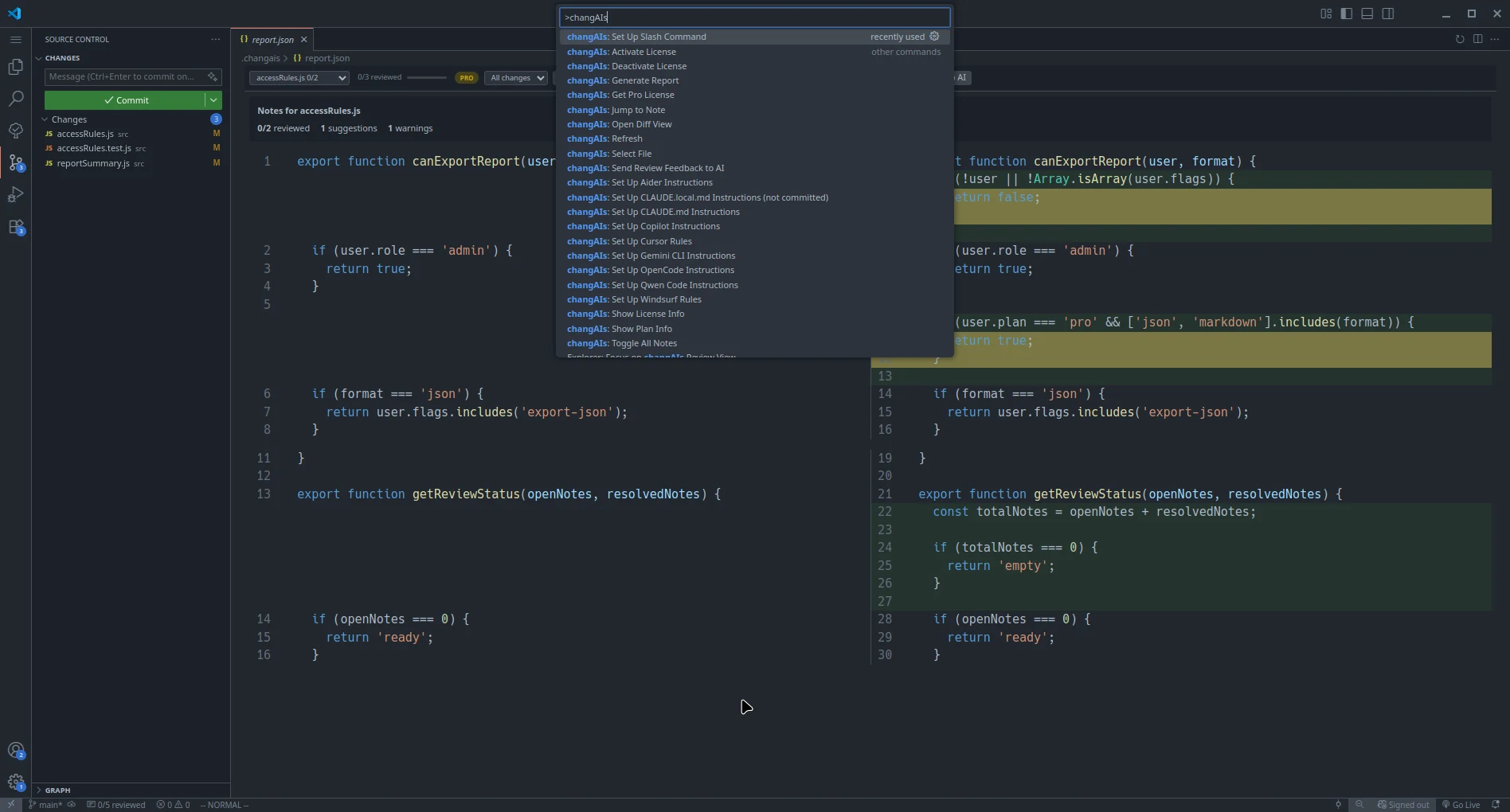
If your build exposes command-palette actions, open the Command Palette and type changAIs to see them. The exact command names depend on the installed extension build.
4. Load or Generate a Report
Section titled “4. Load or Generate a Report”In general, the review process looks like this:
- A report is loaded or generated in the
.changaisfolder. - The user reviews changed files while inspecting notes attached to changed lines.
- The user replies to notes or marks them as checked or resolved.
changAIs uses report files to connect changed files with AI notes. A report may come from:
- A changAIs-compatible AI workflow.
- A manually selected report file.
- A generated report from a supported changAIs workflow.
If you create a report manually or from automation, use the structure in Report Format.
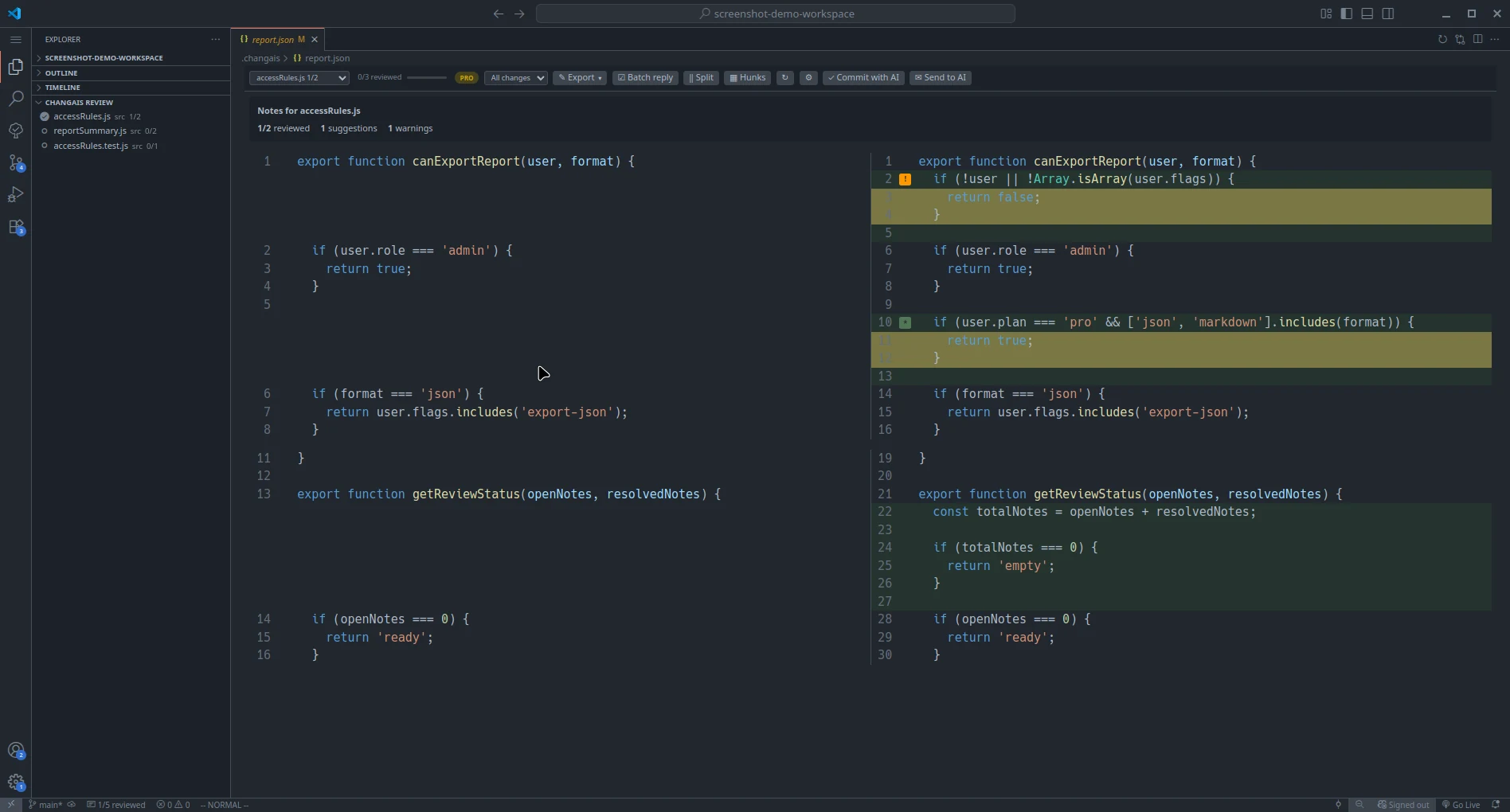
After the report is loaded, the extension shows the files and notes available for review.
5. Review Before You Commit
Section titled “5. Review Before You Commit”Work through each changed file, compare the diff, and inspect notes pinned to the relevant lines. Use the checked or resolved state to track what you have already reviewed.
Use the file navigation controls to move through the report. Mark all as reviewed requires a confirmation; Batch reply shows checkboxes for choosing notes. If you need an explanation, Prepare Prompt writes a local prompt, while Ask AI (Pro) sends the selected file’s review context to an installed AI CLI and shows its answer here. Read Review Notes before sending sensitive code.
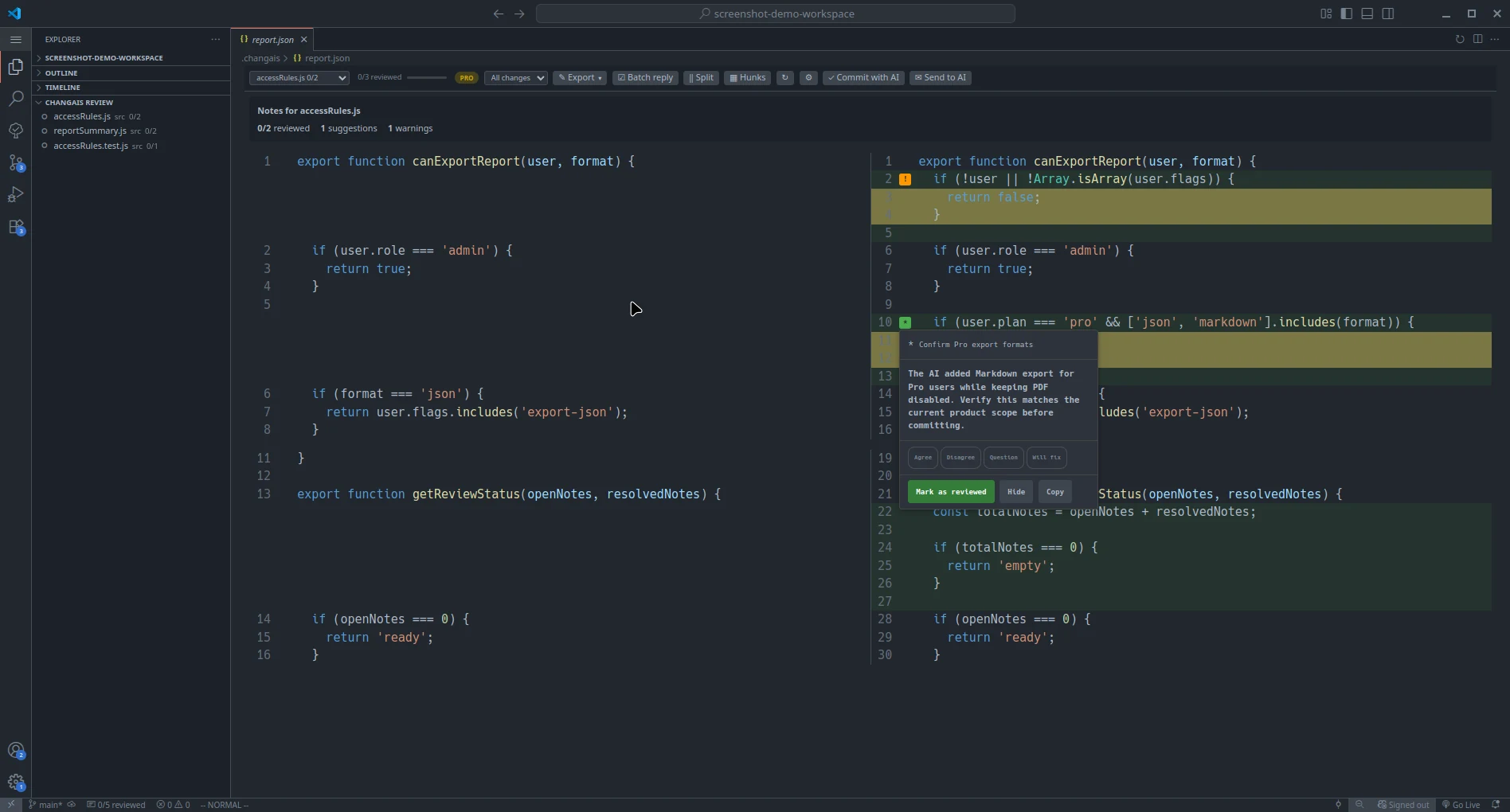
When you finish, commit only the changes you understand and accept.
6. Commit with AI (Pro)
Section titled “6. Commit with AI (Pro)”Commit with AI is a Pro feature. Use it after you have reviewed the changed files, checked the relevant notes, and confirmed that tests or manual checks are good enough for the change.
To create a commit with AI assistance:
- Configure AI commit behavior in the extension settings.
- Open the project with the reviewed changes.
- Open the report that matches the current file state.
- Resolve or check the notes you have finished reviewing.
- Open Commit with AI in the changAIs review UI.
- Add a commit prefix. Tip: you can also use this field to configure behavior for this commit.
- Wait for the AI to finish, then review the created commit.
Commit with AI can draft a commit message from the report and changed files, but it does not verify code correctness.
7. Export the Report (Pro)
Section titled “7. Export the Report (Pro)”Advanced report export is available to Pro users. Use it when you need a record of what changed, which notes were reviewed, and what decisions were made.
To export a report:
- Open the report you want to export.
- Review the files and update note state as needed.
- Click the Export dropdown and choose the format you need: Markdown, JSON, HTML, CSV, or PDF.
- Use the exported file. We recommend removing it from the project after generation.
Exported files are written under .changais/exports/ with dated filenames:
.changais/exports/export-YYYYMMDD-HHmmss-SSS.md.changais/exports/export-YYYYMMDD-HHmmss-SSS.json.changais/exports/export-YYYYMMDD-HHmmss-SSS.html.changais/exports/export-YYYYMMDD-HHmmss-SSS.csv.changais/exports/export-YYYYMMDD-HHmmss-SSS.pdf.changais/prompt.md is not an export artifact. It is the working prompt used when you ask an AI assistant to act on your replies.
Before sharing an exported file, remove private code and any other data that should not leave your machine.