
Reports
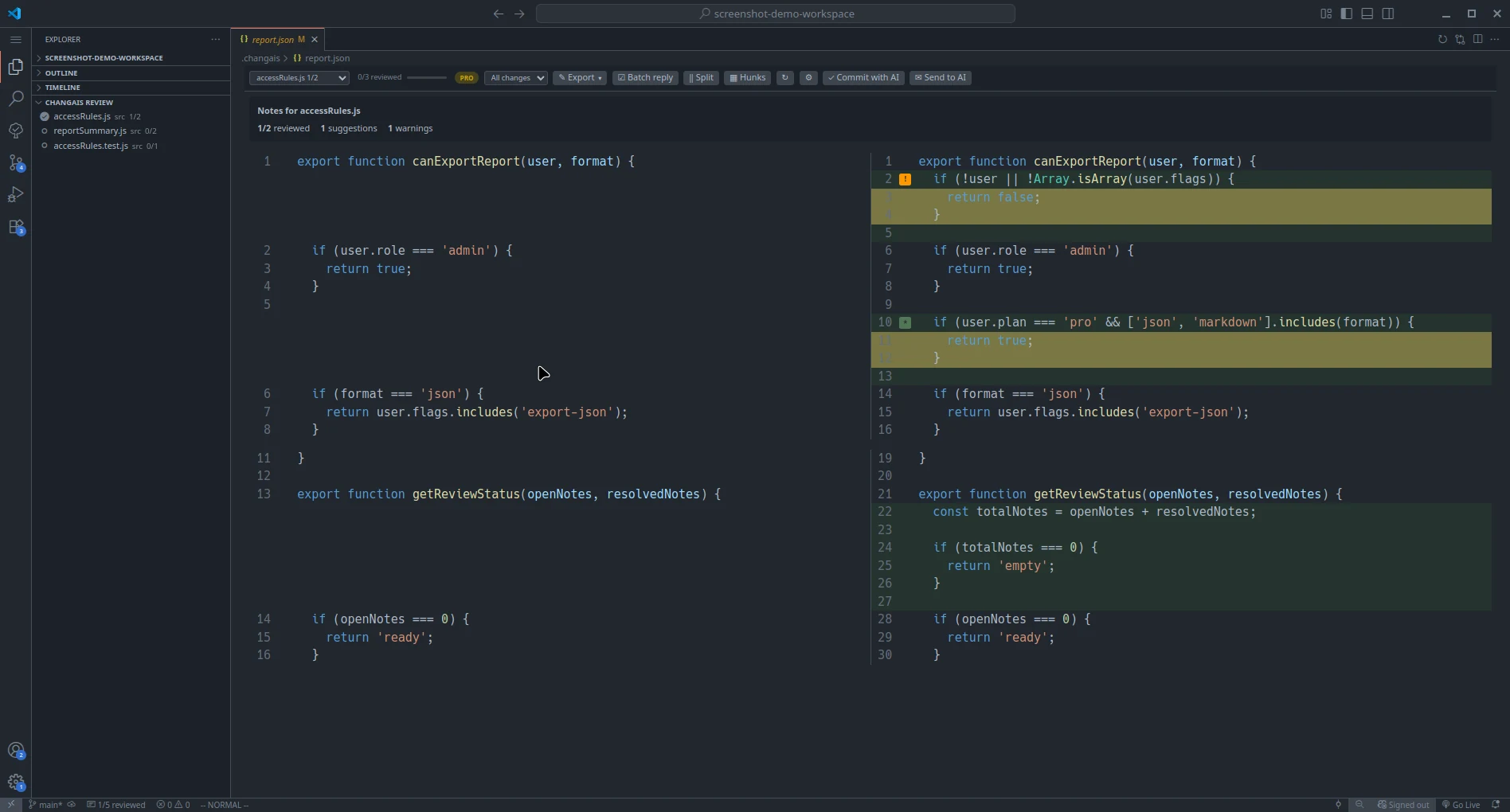
Reports connect your changed files with AI-generated notes. changAIs uses them to show what changed, where a note belongs, and what review state has already been recorded.
Where Reports Come From
Section titled “Where Reports Come From”Reports may come from:
- A changAIs-compatible AI coding workflow.
- A report file generated by another supported changAIs workflow.
- A manually selected local report file.
The current release supports setup workflows for Claude Code, GitHub Copilot, Cursor, Windsurf, Aider, Gemini CLI, OpenCode, Qwen Code, and Codex. Additional AI coding tools are planned on the Roadmap.
The report must match the project and file state you are reviewing.
If you want to create a report manually or from automation, use the JSON shape documented in Report Format.
Loading a Report
Section titled “Loading a Report”- Open the project that contains the changed files.
- Open the changAIs review surface provided by your installed extension build.
- Select or load the report file if the extension asks for one.
- Review the changed files and notes shown by the extension.
If the report does not match the current project, notes may not line up with the files you expect.
Sending Questions Back to AI
Section titled “Sending Questions Back to AI”Replies create a feedback loop for the current report:
- Review a note in changAIs.
- Add a reply such as
question,agree,disagree, orwill-fix. - Run
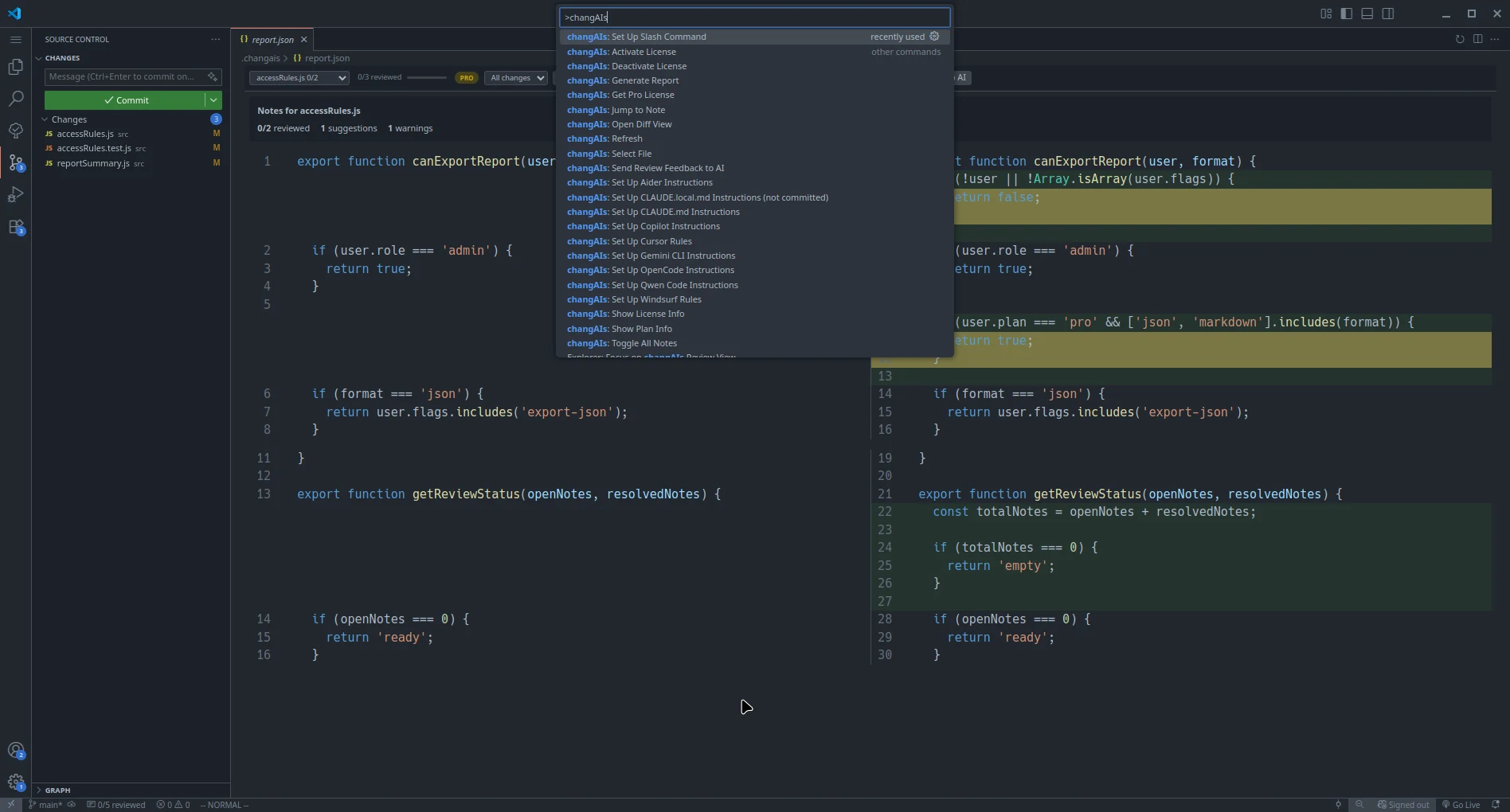
changAIs: Prepare AI Follow-up Prompt, or click Prepare AI Prompt in the changAIs review toolbar. - Review
.changais/prompt.md, then give it to your AI tool or pass it through your own workflow. - The AI should read
.changais/prompt.md,.changais/report.json, and.changais/replies.json, answer anyquestionreplies, act on accepted fixes, and update.changais/report.jsonwith fresh notes for the current code state.
Prepare AI Follow-up Prompt does not send your code or replies to an AI service. It creates a local .changais/prompt.md file; you decide how to use it. Pro users can instead choose Ask AI to send a question and the selected file’s notes, replies, and diff to an installed, authenticated AI CLI and see its answer in changAIs. See Review Notes for supported tools, cancellation, model selection, and data-sharing details.
Use question when you need the AI to explain a note or clarify why it changed something. Use agree or will-fix when you want the AI to make the requested change.
What to Expect
Section titled “What to Expect”A report can include:
- Changed file paths.
- Diff metadata.
- AI notes attached to files or specific lines.
- Reply history.
- Checked or resolved state for notes.
Troubleshooting
Section titled “Troubleshooting”If nothing appears after loading a report, confirm that:
- You opened the correct project folder.
- The report was generated for the same codebase.
- The changed files still exist.
- The extension build supports the report format you selected.
If you still need help, email support@changais.com and include your changAIs version, editor version, operating system, install method, reproduction steps, and safe screenshots or logs.